Video Component
Player Controls
Complete guide to using the video player controls, settings, and customization options
Building your own control bar? See the Hooks docs. Custom controls for the public Video
component should use theme="hideUI" and the scope-based hook model. Put controls inside <Video> when possible,
or wrap detached sibling controls in <VideoPlayer>.
Control Bar Overview
The video player features a comprehensive control bar with the following elements:
- Play/Pause Button - Click to start or stop video playback
- Progress Bar - Shows current position and allows seeking
- Chapters - Navigate to specific sections of the video (when enabled)
- Volume Control - Adjust audio level
- Time Display - Current time / Total duration
- Subtitle Display - Toggle subtitle display
- Settings Menu - Access playback speed, quality, subtitles, and audio options
- Picture-in-Picture - Open video in a floating window
- Fullscreen - Expand video to full screen

Playback Speed Control
The player offers multiple playback speeds:
- 0.25x - Quarter speed (great for detailed analysis)
- 0.5x - Half speed (helpful for learning complex content)
- 0.75x - Three-quarter speed
- Normal (1.00x) - Standard playback speed
- 1.25x - Slightly faster
- 1.5x - 1.5x speed
- 1.75x - Fast playback
- 2x - Double speed (maximum)
Custom Speed Control
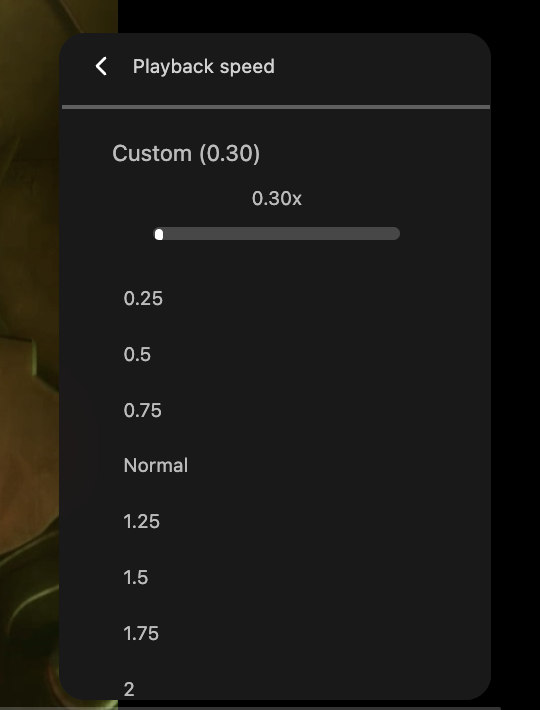
Use the custom speed slider to set any speed between 0.25x and 2x:
- Click the Settings gear icon
- Select Playback Speed
- Use the slider at the top to set a custom speed (e.g., 1.15x)
- The current speed is displayed as you adjust
Choose from preset speed options:
- Click the Settings gear icon
- Select Playback Speed
- Click any preset speed option
- The selected speed is marked with a checkmark
[//] # ()
Video Chapters
Chapters allow viewers to navigate to specific sections of a video, similar to YouTube chapters. When enabled, chapter markers appear on the progress bar, making it easy to jump to relevant content.
How Chapters Work
- Progress Bar Markers - Chapter points are displayed as segments on the progress bar
- Chapter Titles - Hovering over a segment shows the chapter title
- Quick Navigation - Click any chapter segment to jump directly to that section
Adding Chapters to Your Videos
Chapters are configured in the RIXL dashboard:
- Navigate to your video in the dashboard
- Open the video settings
- Add chapters with timestamps and titles
- Save your changes
Enabling Chapters in Your Player
To display chapters in your embedded player, set the chapters prop to true:
<Video id="D3OCjdLP60" chapters={true} />Chapters will only appear if you've added them to your video in the RIXL dashboard. Videos without chapters configured will show a standard progress bar.
Chapter Best Practices
- Meaningful titles - Use descriptive titles that help viewers find specific content
- Logical breakpoints - Place chapters at natural content transitions
- Consistent timing - For series or similar content, try to maintain consistent chapter structures
Subtitle Controls
To Enable subtitle:
- Click the Settings gear icon
- Select Subtitle/CC
- Choose your preferred language:
- Off - No subtitles
- English - English subtitles
- (Additional languages available based on video)
Subtitle availability depends on the specific video content. Not all videos have subtitles in all languages.
Subtitle Customization
Click Options in the subtitle menu to customize appearance:
Font Settings:
- Font Family: Choose from multiple typefaces
- Font Size: Adjust text size from 50% to 200%
- Font Color: Select text color
Background Settings:
- Background Color: Choose subtitle background
- Background Opacity: Control background transparency
Window Settings
- Window Color: Set the subtitle window color
- Window Opacity: Adjust window transparency
Subtitle Best Practices
- High Contrast: Use white text on black background for best readability
- Appropriate Size: 100-125% font size works well for most screens
- Background Opacity: 75% opacity provides good text visibility without obscuring video
- Positioning: Subtitles appear at the bottom of the video by default
Video Quality Settings
The player supports multiple resolution levels tailored to the video source and your viewing conditions:
-
Auto (Recommended) - Automatic quality selection based on your network connection speed and playback device.
-
Other Available Resolutions - The player supports various quality settings, from high definition down to lower resolutions for slower connections. The specific options available will depend on the source video.
To select quality:
- Click the Settings gear icon
- Select Quality
- Choose your preferred resolution
- The selected quality is marked with a checkmark
Auto quality provides the best balance of video quality and smooth playback. It will automatically upgrade or downgrade quality as needed.
The Auto setting automatically adjusts video quality based on your internet connection and device capabilities.
Choose a specific quality when you want to:
- Force higher quality for important content (if your connection supports it)
- Force lower quality to save bandwidth or improve performance
- Maintain consistent quality throughout playback
Audio Track Selection
Videos may include multiple audio tracks:
- English - English audio track
- Spanish - Spanish audio track
- Commentary (eng) - English commentary track
- (Additional languages and tracks based on video content)
Selecting Audio Tracks:
- Click the Settings gear icon
- Select Audio Track
- Choose your preferred audio option
- The selected track is marked with a checkmark
- Audio switches immediately without interrupting playback
Audio track availability varies by video. Educational and professional content often includes multiple language options and commentary tracks.
Keyboard Shortcuts
Playback Controls
| Action | Keyboard Shortcut | Alternative |
|---|---|---|
| Play/Pause | Spacebar | K |
| Play/Pause (Media Keys) | MediaPlayPause | MediaPlay / MediaPause |
Seeking Controls
| Action | Keyboard Shortcut | Description |
|---|---|---|
| Seek Forward 5s | → (Right Arrow) | Jump ahead 5 seconds |
| Seek Backward 5s | ← (Left Arrow) | Jump back 5 seconds |
| Seek Forward 10s | L | Jump ahead 10 seconds |
| Seek Backward 10s | J | Jump back 10 seconds |
Chapter Navigation
| Action | Keyboard Shortcut | Description |
|---|---|---|
| Next Chapter | Shift + N | Jump to the next chapter |
| Previous Chapter | Shift + P | Jump to the previous chapter |
Chapter shortcuts are only active when the video has chapters enabled via the chapters prop.
Audio Controls
| Action | Keyboard Shortcut | Description |
|---|---|---|
| Volume Up | ↑ (Up Arrow) | Increase volume |
| Volume Down | ↓ (Down Arrow) | Decrease volume |
| Mute/Unmute | M | Toggle audio on/off |
Display Controls
| Action | Shortcut / Interaction | Description |
|---|---|---|
| Toggle Fullscreen | F | Enter/exit fullscreen |
| Picture-in-Picture | I | Enter/exit Picture-in-Picture |
| Double-click | Double-click | Toggle fullscreen |
Quick Navigation
| Action | Keyboard Shortcut | Description |
|---|---|---|
| Jump to 0% | 0 | Start of video |
| Jump to 10% | 1 | 10% through video |
| Jump to 20% | 2 | 20% through video |
| Jump to 30% | 3 | 30% through video |
| Jump to 40% | 4 | 40% through video |
| Jump to 50% | 5 | 50% through video |
| Jump to 60% | 6 | 60% through video |
| Jump to 70% | 7 | 70% through video |
| Jump to 80% | 8 | 80% through video |
| Jump to 90% | 9 | 90% through video |
Case Insensitive: Letter shortcuts work with both uppercase and lowercase (e.g., both f and F trigger
fullscreen).
Context Aware: Keyboard shortcuts are disabled when typing in input fields, text areas, or content-editable elements to prevent conflicts.
Focus Required: The video player area must have focus for keyboard shortcuts to work. Click on the video if shortcuts aren't responding.
Picture-in-Picture Mode
Enabling PiP Mode:
- Click the Picture-in-Picture icon in the control bar or Press
Ion your keyboard - The video opens in a floating window
- Continue working in other applications while the video plays
- The PiP window stays on top of other content
The floating window includes basic controls:
- Play/Pause button
- Close PiP button
- Resize handles (drag corners to resize)
- Move handle (drag to reposition)
Returning to Main Player
- Click the video in the PiP window to return to the main player
- Close the PiP window to stop playback
- Switch browser tabs to return to the original player
- Use "i" key
Picture-in-Picture support varies by browser. It works best in Chrome, Firefox, and Safari on desktop platforms.
Fullscreen Mode
Entering Fullscreen:
- Click the Fullscreen icon in the control bar
- Press
Fon your keyboard
Fullscreen Controls:
- Auto-hide: Controls disappear after a few seconds of inactivity
- Show Controls: Move your mouse to reveal controls
- Exit Fullscreen: Press
Esc, click the exit fullscreen icon, or PressFon your keyboard
Fullscreen Tips
- Use keyboard shortcuts for quick control without showing the control bar
- Press
Escto quickly exit fullscreen mode - Double-click anywhere on the video to toggle fullscreen